# Navigating the CLI
## Overview
The CLI has 3 primary views:
* Workspace
* Tasks
* Remote Task
You can switch views with `Shift+Tab`
## Workspace View
The Workspace view is your **Local Machine**
You can execute Tasks against your local file system and utilise your pre-setup environment to allow Cosine to install packages, run tests and self-validate.
#### Options:
**Auto Accept**
This mode will auto-approve code changes and CLI commands. When not set, you will have to accept or reject changes made by the Cosine CLI.
**Quick | Think**
This setting tunes the Cosine model to be more verbose and think for longer or to be slightly quicker in its decisions. We generally advise defaulting to Think.
**Promote**
This action moves your Task to the Cosine platform to continue iteration remotely.
## Tasks View
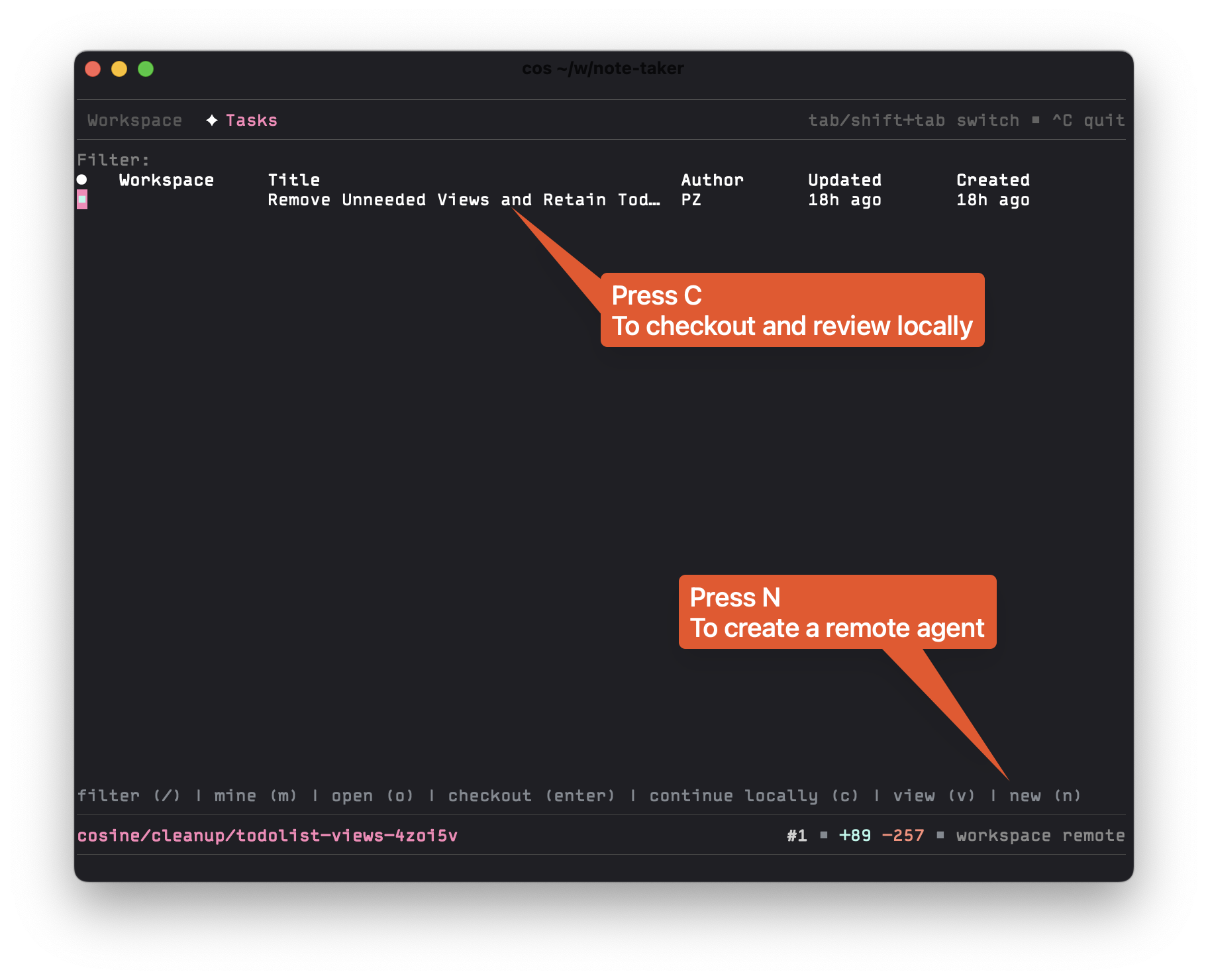
In the Tasks view, you can view and manage all your remote agents running in the Cosine platform.
#### Remote Tasks
You can execute tasks against the Cosine platform so as to free up your local dev machine. From the Tasks view, press "n" to define the task and launch the remote agent.